How to recover domain administrator password on Windows Server 2012
Forgetting your Windows Server 2012 password is always troublesome, but fortunately there are simple ways to reset your domain administrator password.
I have come up with two methods to recover domain administrator on Windows Server 2012. Now I would like to share these two methods with you.
1. Recover domain admin password with Command Prompt
2. Recover with Vodusoft Windows Password Reset Enterprise edition
1. Recover domain admin password with Command Prompt
Steps on how to recover a domain password with Command Prompt
1. Boot the Windows server 2012 with the installed CD/DVD.
2. Select the Installed language, and then click “Next” to the next step.
3. Click “Repair the computer” on the lower left corner of the screen
4. Choose “Windows server 2012” as the local operation system, and then click “Next”.
5. Click “Command Prompt” in the window of “System Recovery Options”
6. Execute the following command in the command window
CD C:\Windows\System32
MOVE Utilman.exe Utilman.exe.bak
COPY Cmd.exe Utilman.exe
Then, execute this command as below:
NET USER administrator /active:yes
7. Execute the “exit” command in the command window, and then click “restart” in the pop-up window
8. Boot to the login screen, click the button on the lower left corner of the screen
9. Execute the command in the pop-up window
net user administrator P@ssw0rd1! /domain
net user administrator /active:yes /domain
net localgroup administrators newadmin /add /domain
10. Close the command line window, login with the new password
Note: “MOVE Utilman.exe Utilman.exe.bak” is a backup; you have to recover the “utilman.exe” in the step6.
2. Recover with Vodusoft Windows Password Reset Enterprise edition
Step by Step guide to reset Windows Server 2012 domain administrator password
Detailed steps are offered as below:
Step 1: Launch Vodusoft Windows Password Enterprise Standard
Step 2: Create a windows password reset boot disk.
To create USB password reset disk: Choose USB device or CD/DVD
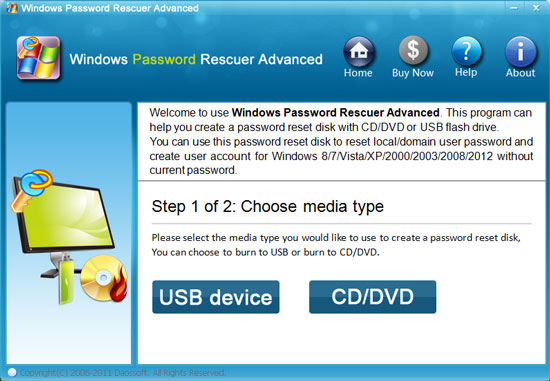
choose the USB device or CD/DVD to burn
And then insert USB flash drive and click “Begin Burning” button to create a USB windows password reset disk.
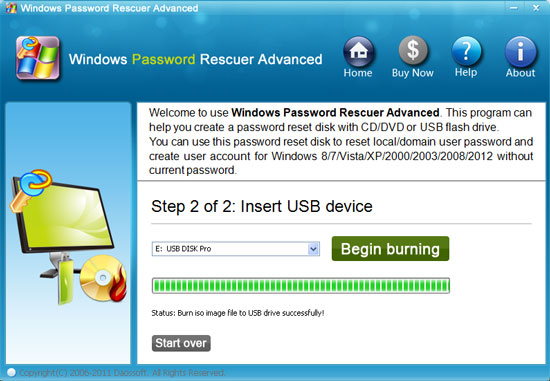
insert the USB device, and then it begins burning
Step 3: Insert Windows Password Reset boot disk to the locked computer, and restart computer.
To set your computer to boot from CD/DVD-ROM, please refer to How to set computer to boot from CD/DVD-ROM.
To set your computer to boot from USB drive, please refer to How to set computer to boot from USB Drive.
Step 4:Select the administrator user, and then click the “Reset” button to reset a new password to administrator user.
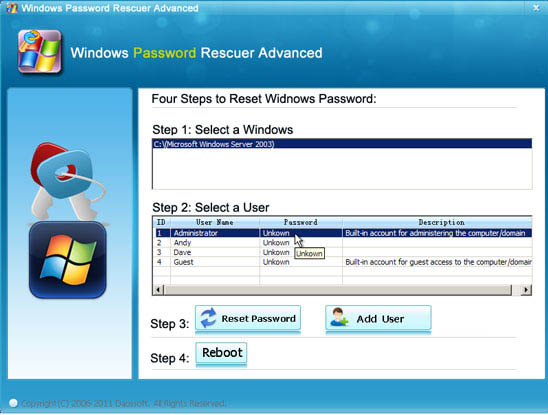
select a user, and reset its password
Step 5: Click “Reboot” button to reboot server computer and login windows server with new password.
I only have introduced two methods on how to recover the Windows Server 2012 password, there are still other methods can be used. For more information, please refer to the related articles as offered below.
Related articles:
- Need help to reset Windows server 2008 r2 domain administrator password
- I have problem on resetting administrator password on server 2008
- How to reset windows server 2012 local admin password