I forgot the password to my computer what do i do?
“How to get into computer if I forgot my password to my computer? My system is Windows 7. I don’t have a reset disk and I don’t want to format my hard drive and reinstall Windows. Very appreciated for your help.” – Question from Ask.com.
Forgot password to computer and cannot get in your computer without password? Do you have the same problem as this?
Don’t disappoint. This article will show you 3 easy and simple ways to help you recover lost windows password on your locked computer.
Option 1: Get into computer with Windows 7 PE disk.
Option 2: Reset (recover) the forgotten computer password with Spower software
Option 3: Remove the forgotten computer with Offline NT Password & Registry Editor
1. Get into computer with Windows 7 PE disk.
This way describes how to create a windows 7 pe boot disk and use it to get in to computer. After getting into computer, you can backup your important data and create a VB script to reset the administrator password of computer. Now follow the guide below:
Step 1: Download Microsoft Windows AIK from Microsoft official site, and install it to a Windows. Microsoft Windows AIK can be installed in Windows Vista or later.
Step 2: Create a Windows 7 PE boot disk.
2.1 Run Deployment Tools Command Prompt as administrator.
2.2 Copy the windows pe image file to an accessible folder: copype.cmd x86 c:/win7pe
2.3 Mount Windows 7 pe image to a folder, so you can access it: imagex.exe /mountrw c:/win7pe/winpe.wim 1 c:/win7pe/mount
2.4 copy the explorer.exe for local computer to system32 folder of Windows 7 pe.
2.5 Unmount Windows 7 pe image: imagex /unmount /commit c:/win7pe/mount
2.6 Replace the source windows 7 image with the new one: copy c:/win7pe/winpe.wim c:/win7pe/iso/sources/boot.wim
2.7 Create a windows 7 pe image file: oscdimg -n -bd:/win7pe/etfsboot.com c:/win7pe/ISO e:/winpe.iso
Step 3: Burn the Windows 7 pe iso file to a CD/DVD disc. Note: You have to burn the ISO image to CD/DVD disc with burning software instead of copying it to the disc via windows explorer directly.
Step 4: Boot the locked computer from Win 7 pe boot disk. If have trouble on setting your computer to boot from CD/DVD drive, please see How to set your comptuer (laptop) boot from CD/USB drive quickly.
Step 5: Backup your data from locked computer or create a script to reset the password for windows 8 user.
To create a script to reset password for Windows 8, 7, vista and XP, you can refer to this article: Reset Windows server 2008 password with a vb script of Windows Server 2008 r2 administrator password recovery
2. Reset (recover) the forgotten computer password with Spower software
Spower password software can help you create a USB or CD/DVD password reset disk and reset the lost password easily. With Spower password tool, you just need a few minutes to unlock a computer password. A few steps, as below:
Step 1: Download and install Spower password reset tool.
Step 2: Use Spower password reset tool to create a password unlock disk. Start Spower software, select “USB flash drive” or “CD/DVD”, and then click “Begin burning”.
Step 3: Insert password unlock disk to the locked computer which you forgot password for.
Step 4: Set the locked computer to boot from USB or CD, and reboot it from password unlock disk.If have trouble on setting your computer to boot from CD/DVD drive, please see How to set your comptuer (laptop) boot from CD/USB drive quickly.
Step 5: Reset forgotten with Spower software. When Spower software starts, it will list all windows and user. You just need to choose the right windows and user and click “Reset” to set a new password for the selected user.
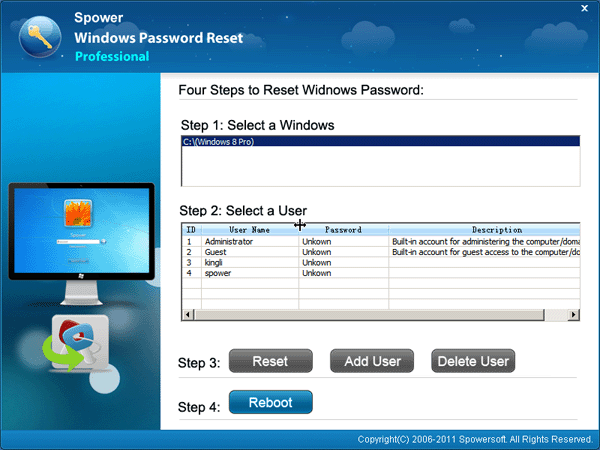
Step 6: Click “Reboot” to restart computer and you can get in computer with new password.
Related Articles:
- Locked out of windows 7 forgot password
- I forgot my laptop password windows 7what do i do?
- I forgot my Windows 8 password
- How to reset Windows 8 password
I am trying the free trial of your product. I am trying to reset the local administrator password on a Hyper-V virtual machine running Windows Server 2008 R2. I created the disk and boot the VM to the CD, but my mouse is not captured in the boot environment of your boot CD. It comes up OK, but I am limited to keyboard only. As I tab around in the screen, the button in Step 3 are never outlined, so I cannot tell where the active cursor is. The only options I can get to come up are Delete User (not available and not useful either to me in this case) and Reboot.
Can you tell me what the keyboard sequence would be to get to the Reset button? Or perhaps you have a different version for Hyper-V VMs that includes Integration Services (which would enable my mouse)? If not, your program would be of too limited utility to warrant our purchase.
Thank you,